


Issue : The component '<filename>.ocx' or one of its dependency is not correctly registered : a file is missing or incorrect
The issue is usually of the form as described below:
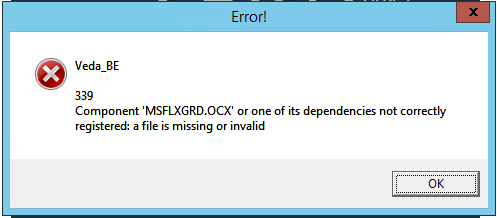
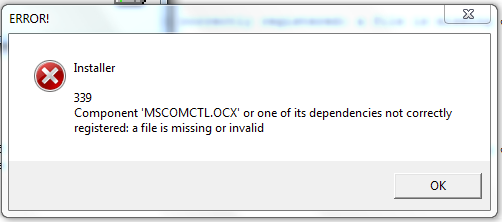
Text changed in both images.(dependencies)
Solution : To register an ActiveX control (dll or ocx) file in Windows Vista, 7, 8.1
or 10:
or 10:
- Open the Windows Command Prompt
- in Windows Vista
or 7:- Select Start > All Programs > Accessories
- Right-click on "Command Prompt" in the
Accessories - Click "Run as Administrator"
- Select Start > All Programs > Accessories
- in Windows 8.1:
- Open the "Quick Link"
menu (by holding down the Windows 8 logo key
and pressing the X key) - Select "Command Prompt (Admin)"
- Select "Yes" to allow changes
- Open the "Quick Link"
- in Windows 10:
- Right-click on the Start icon
- Select "Command Prompt (Admin)"
- in Windows Vista
- To register a dll or ocx Windows System file in a 32-bit version
(older) of Windows (Vista, 7, 8.1, or 10),
- Type cd\ [then press Enter]
- Go to step 5
- To register a 32-bit dll or ocx Windows System file in a 64-bit
version of Windows (10, 8.1, 7, or Vista),
- Type cd \Windows\SysWOW64 [then press Enter]
- Go to step 5
- To register a dll file in CTI Navigator
- in a 32-bit version of Windows, type cd\Program Files\Cti
Navigator [then press Enter]
- in a 64-bit version of Windows, type cd\Program
Files (x86)\Cti
Navigator [then press Enter]
- in a 32-bit version of Windows, type cd\Program Files\Cti
- Type regSvr32 {fileName.dll}
[or regSvr32 {fileName.ocx} as appropriate]
For example,
- to register the Microsoft "msi.dll" file in the
Windows\System32 folder of a 32-bit version of Windows, type cd\ and press ENTER; then type regsvr32
msi.dll and press ENTER; - to register the Microsoft "ScrRun.dll" file in the
Windows\SysWOW64 folder of a 64-bit version of
Windows, type cd \Windows\SysWOW64 and press ENTER; then type regsvr32
scrrun.dll and press ENTER; - to register the CTIAnnouncement.dll file in the CTI Navigator
folder in a 32-bit version of
Windows, type cd\Program Files\CTI Navigator and press ENTER;
then type regsvr32
ctiannouncement.dll and press ENTER; - to register the CTI Announcement.dll file in the CTI Navigator
folder in a 64-bit version of
Windows, type cd\Program Files (x86)\CTI
Navigator and press ENTER; then type regsvr32
ctiannouncement.dll and press ENTER.
- to register the Microsoft "msi.dll" file in the
- A message indicating "DllRegisterServer in... succeeded"
should appear.